Imagine sitting down on a snowy Saturday in Sudbury, remote in hand, facing 25,000+ live channels with nothing but their names on screen. Is the Leafs game on Sportsnet Ontario or CBC tonight? When does the movie on that channel end? Without an IPTV EPG, you would have to click through channels one by one to find out. With a working guide, the answer is on screen in two seconds.
This 2026 guide is written for Canadian viewers who want their program guide to just work. We cover what the EPG actually is, how the data reaches your app, the exact steps to load and refresh it in TiviMate and IPTV Smarters Pro, how to fix the most common problems, and how the guide connects to catch-up viewing.
What Is an IPTV EPG? The Short Answer
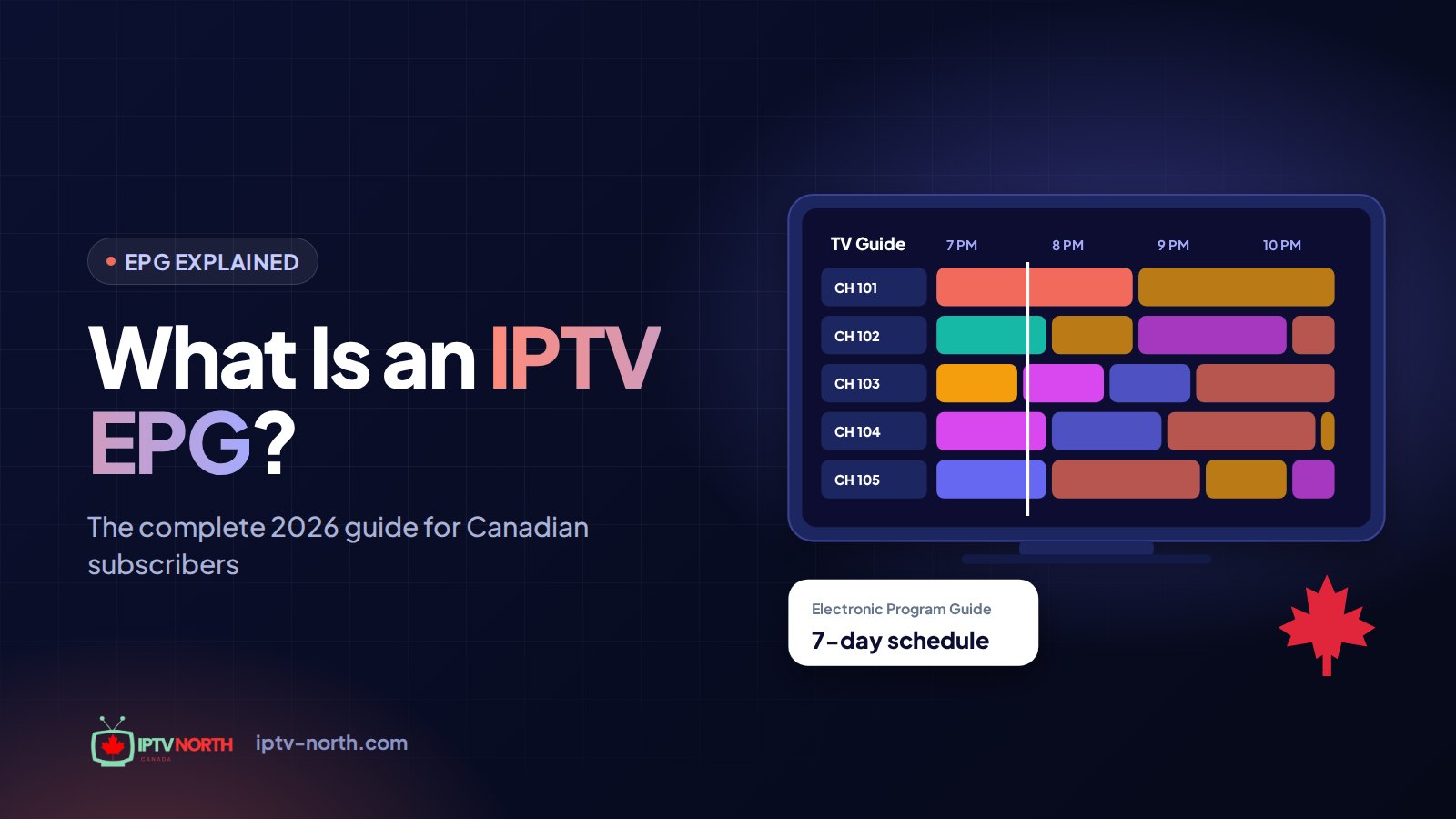
EPG stands for Electronic Program Guide. It is the on-screen schedule inside your IPTV player: a grid with channels down one side, time slots across the top, and a block for each show, movie or game.
For each program, a good guide shows:
- the title and a short description;
- start and end times in your local time zone;
- the category (sports, news, kids, movies and so on);
- sometimes the season and episode number.
If you remember the printed TV listings that used to come with the weekend newspaper, the EPG is the same idea, except it updates itself, covers every channel in your lineup and lets you jump straight to a program with one click.
Why It Matters More on IPTV Than on Cable
A cable box usually carries a few hundred channels. An IPTV lineup like IPTV North's has 25,000+ live channels plus 120,000+ movies and series on demand. At that scale, browsing without a guide is not just slow, it is practically impossible. The EPG is what turns a huge list into something you can actually navigate, filter and search.
Reading the Guide Grid Like a Pro
If you are coming from a Bell, Rogers or Vidéotron cable box, the grid will feel familiar, but a few details are worth knowing.
- The red or white line running down the grid marks the current time. Everything to its right is upcoming; everything to its left has already aired.
- Longer blocks are longer programs. A three-hour hockey broadcast, pre-game show included, stretches across several time slots.
- Colours or icons often mark categories. Sports, movies and news may each have their own tint, depending on the player.
- The info panel at the top or side shows the highlighted program's description, so you can decide without switching channels.
- Jumping by day: most players let you press a button, often fast-forward or a long press to the right, to skip ahead a full day.
A quick routine for game night: open the guide, filter to your Canadian sports group, find the time your team plays, and press OK on the listing to tune in or set a reminder. After a week or two, it becomes second nature.
How IPTV EPG Data Gets to Your Screen
Knowing the path the data travels makes troubleshooting much easier. There are four stages.
1. The Schedule Is Compiled
Broadcasters publish their schedules, and those listings are gathered for each channel in the lineup: TSN, Sportsnet, CBC, CTV, Global, RDS, TVA and thousands of international stations. The result is stored in a standard format called XMLTV.
2. The Guide File Is Hosted by Your Provider
That XMLTV file (often compressed as .gz) sits on the provider's servers. At IPTV North it is refreshed daily and typically covers about seven days ahead, so you can plan the week's games and shows.
3. Your Player Downloads and Stores It
When you log in or refresh, your app downloads the file and saves a copy on the device. The first download after a fresh install can take a minute or two because the file is large. After that, the app works from its local copy until the next refresh.
4. Channels Are Matched to Listings
Each channel has an ID. The player uses these IDs to connect "TSN1" in your channel list to "TSN1" in the guide file. When the IDs match, the listings appear. When they do not, that channel shows "No information", even though the rest of the guide looks fine.
Almost every EPG problem you will ever meet traces back to one of these four stages: the data was not downloaded, it is out of date, the time zone is off, or a channel ID does not match.
Xtream Codes or M3U: Which Login Gives You the Better Guide?
IPTV North accounts can be connected in two ways. The choice has a direct impact on how easy your guide will be.
| What you care about | Xtream Codes login | M3U playlist link |
|---|---|---|
| Guide setup | ✔ Guide link delivered automatically at login | ~ Guide link must be pasted separately |
| Channel matching | ✔ IDs already aligned with the guide | ~ Depends on how the playlist names channels |
| Movies and series | ✔ Sorted into categories automatically | ~ Depends on the app |
| Renewals | ✔ Nothing to re-enter | ~ Link may need updating |
| Works with | ✔ All major players | ✔ Almost any player, including niche apps |
| Best for | ✔ Nearly everyone | ~ Apps without Xtream Codes support |
Our advice: use the Xtream Codes option whenever your player offers it. You enter the server address, username and password from your welcome email, and the guide arrives on its own. Keep M3U for the rare app that does not support Xtream Codes.
Loading the IPTV EPG in TiviMate
TiviMate is a favourite on Fire TV Stick and Android TV boxes, largely because its guide grid is fast and clean. If you have not installed it yet, follow our TiviMate on Android TV guide first.
- Add a playlist. Open TiviMate, choose to add a playlist, and select Xtream Codes.
- Enter your details. Type the server address, username and password from your IPTV North welcome email, then continue.
- Let it load. TiviMate imports your channels and reads the guide address from the server automatically. You do not need to type any EPG link.
- Check the source. Go to Settings → EPG and confirm that a guide source is listed and shows a recent update time.
- Set the refresh interval. In the same menu, choose an update interval. Every 12 or 24 hours suits most homes.
- Open the grid. Back on the main screen, press the menu or guide button on your remote. Scroll up and down through channels and left and right through time.
Refreshing the Guide in TiviMate
If listings look out of date, go to Settings → EPG and select Update EPG. Give it a minute, then reopen the grid.
TiviMate Features Worth Turning On
- Reminders: highlight a future program and set a reminder. TiviMate pops up a notice before it starts, which is perfect for a 10 p.m. Canucks game.
- Hide unused groups: if you never watch certain categories, hiding them trims the channel list and makes guide updates lighter on older devices.
- Favourites: build a "Tonight" group with the channels you use most, so the grid shows only what matters.
Some of these options, including reminders and catch-up playback, are part of TiviMate Premium, a paid upgrade from the app's developer.
Loading the IPTV EPG in IPTV Smarters Pro
IPTV Smarters Pro runs on Fire TV, Android, iPhone, iPad and computers, which makes it a handy choice for households with mixed devices.
- Choose Xtream Codes. On the first screen, pick Login with Xtream Codes API.
- Fill in your account. Enter any name you like for the profile, then the server address, username and password from your welcome email.
- Wait for the first sync. Smarters downloads channels, movies, series and guide data. A progress indicator shows the status; the first load can take a minute or so.
- Open Live TV. Pick a category, highlight a channel, and the current and next programs appear beside the preview.
- Use the full guide. From the home screen, choose the TV Guide (or EPG) option for the full grid.
Refreshing the Guide in IPTV Smarters Pro
Look for the refresh icon on the home screen or in Live TV, or open Settings and use the option to refresh the EPG. If a few channels are still blank afterwards, see the troubleshooting section below.
Tips for Smarters Users
- Set the correct time format and time zone in Settings so that game times line up with your province.
- Use the search option in Live TV to find channels quickly by name, such as "RDS" or "Sportsnet".
- On iPhone and iPad, keep the app updated through the App Store; guide display improvements arrive with updates.
Other Players: GSE Smart IPTV, Perfect Player and More
Most mainstream players handle the EPG in similar ways:
- GSE Smart IPTV (iPhone, iPad, Apple TV, Android): add your account as an Xtream Codes playlist, then check the EPG manager to confirm a source was added and run a refresh.
- Perfect Player (Android): this app uses an M3U link and a separate guide link. Paste both in its settings, then run an EPG update. If you do not have the guide link, ask our support team.
- MAG, BuzzTV and Formuler boxes: these devices have their own portals or apps with built-in guides. Once your account is set up, the guide is usually available from the remote's EPG or Guide button.
Step-by-step instructions for each device are in our installation guide.
The IPTV EPG on Phones, Tablets and Computers
The guide is not only for the living room TV. On a phone or tablet, the grid is smaller, so players often switch to a list view: pick a channel, and the day's schedule appears underneath.
- iPhone and iPad: IPTV Smarters and GSE Smart IPTV both show current and upcoming programs. On an iPad, the bigger screen makes the full grid comfortable to browse, which is handy for checking tonight's games from the couch or the bus.
- Android phones and tablets: TiviMate has a mobile version and IPTV Smarters works well too. Guide refreshes use data, so on mobile plans it is smart to refresh on Wi-Fi.
- Windows and Mac: desktop players display a wide grid that shows more hours at once, which is useful for planning a week of viewing.
Keep in mind that each IPTV North plan covers one device at a time. You can log in on several devices, but watch on one at a time, and each device keeps its own copy of the guide, so refresh it on the one you are using.
Catch-Up TV: Using the Guide to Go Back in Time
The EPG does not only look forward. On channels where catch-up (sometimes called "archive" or "timeshift") is enabled, the guide also becomes a way to watch programs that already aired.
How It Works
In the guide grid, scroll left past the current time. Programs that can be replayed are usually marked with a small clock or rewind icon. Select one, and the player streams it from the start, as if you had recorded it.
When It Helps Canadian Viewers
- You got home late from work in Winnipeg and missed the first period of the Jets game.
- The evening news aired while you were driving the kids to hockey practice.
- A West Coast game ended at 1 a.m. Eastern and you want to watch the third period with your morning coffee.
Good to Know
- Catch-up availability depends on the channel. Not every channel offers it, and the length of the archive can vary.
- Your player must support it. TiviMate (with Premium) and IPTV Smarters both offer catch-up on supported channels.
- Catch-up relies on accurate guide data. If the EPG for a channel is wrong or missing, the replay may start at the wrong point or not appear at all, which is one more reason to keep your guide healthy.
Fixing IPTV EPG Problems: Symptom by Symptom
Most guide issues can be fixed in under five minutes. Find your symptom below.
Every Channel Says "No Information"
Likely cause: the guide file did not download, or the stored copy is damaged.
What to do:
- Force an EPG update from your player's settings.
- If nothing changes, clear the app's cache in your device settings (on a Fire TV Stick: Settings → Applications → Manage Installed Applications → your player → Clear Cache).
- Still blank? Remove the playlist or profile, restart the device, and log in again with Xtream Codes. A fresh login fetches the guide address again.
Programs Show at the Wrong Time
Likely cause: a time zone or offset setting in the player, not bad data.
What to do: set your real local time zone in the player. Canada spans six of them: Pacific, Mountain, Central, Eastern, Atlantic and Newfoundland. In TiviMate, look under the EPG settings for a time offset; in IPTV Smarters, use the time zone option in Settings. Then refresh the guide. A Senators game should read 7 p.m. in Ottawa and 4 p.m. in Vancouver.
Only a Few Channels Are Blank
Likely cause: a channel ID mismatch, often on a new or renamed channel.
What to do: first try a normal refresh, since IDs are corrected on the server side from time to time. If a channel is still empty, use manual matching:
- In TiviMate: long-press the channel, choose to edit it, and pick the correct guide entry by searching its name.
- In IPTV Smarters: where your version offers an EPG matching option, open it from the channel's menu and select the right listing.
The Guide Shows Yesterday's Schedule
Likely cause: automatic refresh is off or failed, so the app keeps using its old copy.
What to do: run a manual update, then check that automatic refresh is switched on with a sensible interval (12 to 24 hours). If it keeps going stale, clear the cache and reload.
The Guide Is Painfully Slow
Likely cause: a large guide file on a device with limited memory or a weak Wi-Fi signal.
What to do:
- Connect the device by Ethernet where you can, or move your router closer.
- Hide channel groups you never watch so the app processes less data.
- Reduce how often the guide refreshes on older Fire TV Sticks.
- Restart the device now and then to free up memory.
If your issue looks more like streams stopping than the guide itself, our article on how to fix IPTV buffering covers network and player fixes.
When to Contact Support
If many channels lose their listings at the same moment, or the guide stays blank on several devices after a fresh login, the cause is likely on our side. Contact our Canadian team 24/7 by chat or at service@iptv-north.com, or use the contact page. Tell us your player, device and which channels are affected so we can check quickly.
Reminders and Recordings: Letting the Guide Work for You
A good IPTV EPG does more than tell you what is on right now. In many players, the listings double as a scheduling tool, which is handy when the game you care about starts while you are still shovelling the driveway.
- Reminders: in TiviMate and several other apps, long-pressing a future program in the guide lets you set a reminder. When the start time arrives, the app pops up a notice and can switch to the channel for you.
- Recordings: some players, TiviMate included, can schedule a recording straight from a guide entry when the app's premium features are active and the device has enough storage. Recording quality depends on your storage and connection, so test it with a short program first.
- Series views: a few apps group repeated listings, so you can spot every airing of a show across the week at a glance.
All of these features rely on accurate guide data. If reminders fire at the wrong time, fix the time offset described earlier before blaming the app.
Getting More From Your Guide: Tips for Canadian Viewers
Once your IPTV EPG is running smoothly, a few habits make it far more useful.
- Search instead of scrolling. Type a team name like "Canadiens" or "Blue Jays" into the guide search to find every upcoming broadcast across all channels.
- Plan the week on Sunday. With about seven days of listings, you can spot key NHL, CFL and Raptors games and set reminders in one sitting.
- Keep a bilingual shortlist. If your household switches between English and French, put CBC, CTV and TSN next to Radio-Canada, TVA and RDS in one favourites group.
- Check provincial channels. Local news and regional sports feeds for your province are easier to find by filtering the guide by category or group.
- Refresh before big nights. Before playoff games, election coverage or New Year's Eve, run a quick manual refresh so late schedule changes appear.
What the IPTV North Guide Includes
The EPG is part of every IPTV North plan, from 1 month at $19 to 12 months at $79. There is no guide add-on and no extra fee. With the Xtream Codes login, it loads automatically, refreshes daily and covers about a week ahead, with Canadian channels listed in the language of the broadcast.
Select number of devices
1 Month
High Performance Server
$19CAD
≈ $19.00 / month
- 1 Device
- 4K Ultra HD Streaming
- 25,000+ Live Channels
- 120,000+ Movies & TV Shows
- Instant VOD Access
- Smart EPG & Catch-Up TV
- 24/7 Canadian Support
- Multi-Device Compatibility
3 Months
High Performance Server
$29CAD
≈ $9.67 / month
- 1 Device
- 4K Ultra HD Streaming
- 25,000+ Live Channels
- 120,000+ Movies & TV Shows
- Instant VOD Access
- Smart EPG & Catch-Up TV
- 24/7 Canadian Support
- Multi-Device Compatibility
6 Months
High Performance Server
$49CAD
≈ $8.17 / month
- 1 Device
- 4K Ultra HD Streaming
- 25,000+ Live Channels
- 120,000+ Movies & TV Shows
- Instant VOD Access
- Smart EPG & Catch-Up TV
- 24/7 Canadian Support
- Multi-Device Compatibility
12 Months
High Performance Server
$79CAD
≈ $6.58 / month
- 1 Device
- 4K Ultra HD Streaming
- 25,000+ Live Channels
- 120,000+ Movies & TV Shows
- Instant VOD Access
- Smart EPG & Catch-Up TV
- 24/7 Canadian Support
- Multi-Device Compatibility
Want to see the guide on your own TV before choosing a plan? The 24-hour trial costs $2.99, and paying by Interac e-Transfer is quick. You can compare every plan on the pricing page.
Frequently Asked Questions
Is the IPTV EPG included in every IPTV North plan?
Yes. Every plan, whether 1, 3, 6 or 12 months, includes the program guide at no extra cost. When you log in with Xtream Codes, it loads without any extra setup.
How many days of listings does the guide show?
The guide usually covers about seven days ahead, and the data is refreshed daily on our servers. Your player then picks up the new data on its own refresh schedule.
Do I need to enter an EPG link manually?
Not with Xtream Codes. The guide address is delivered automatically when you log in. Only M3U-based players such as Perfect Player need a separate guide link, and our support team can provide it.
Why are the program times off by a few hours?
It is almost always the time zone or time offset in your player. Set your actual local zone, from Newfoundland to Pacific, then refresh the guide.
Can I watch a show that already aired from the guide?
On channels with catch-up enabled, yes. Scroll back in the guide and look for the replay icon. Availability varies by channel, and your player needs to support catch-up.
Which app has the best guide for Canadian viewers?
Many users prefer TiviMate on Fire TV Stick and Android TV for its fast grid and reminders. IPTV Smarters Pro is a good choice if your household uses a mix of Android, Apple and computer devices.
Does the guide show French-language listings for Québec channels?
Yes. Program titles and descriptions generally appear in the language of the broadcast, so RDS, TVA and Radio-Canada listings show in French, while CBC, CTV and TSN listings show in English. Bilingual households can keep both sets of channels in the same favourites group and read each schedule in its original language.
Make the Most of Your IPTV EPG
A reliable IPTV EPG is what makes a large IPTV lineup feel like real television. Load it with Xtream Codes, set the right time zone, keep automatic refresh switched on, and you will always know what is on, what is coming and where to find it, from Hockey Night in Canada to the late news in Montréal. When something goes wrong, the fixes in this guide solve most problems in minutes, and our Canadian support team is there for the rest.