You turn on the TV for the late news on CBC or the Canucks game, and nothing happens: a black screen, an "authorization failed" message, or a channel list that never finishes loading. When your IPTV is not working in Canada, the first question isn't "how do I fix it?" but "is it me, or is it them?"
This guide answers that question in about a minute, then gives you a targeted fix for each common error message. No need to try twenty random tips: find the symptom that matches your screen and follow those steps. It applies to IPTV North subscribers on any device, and most of it works for any IPTV Canada service.
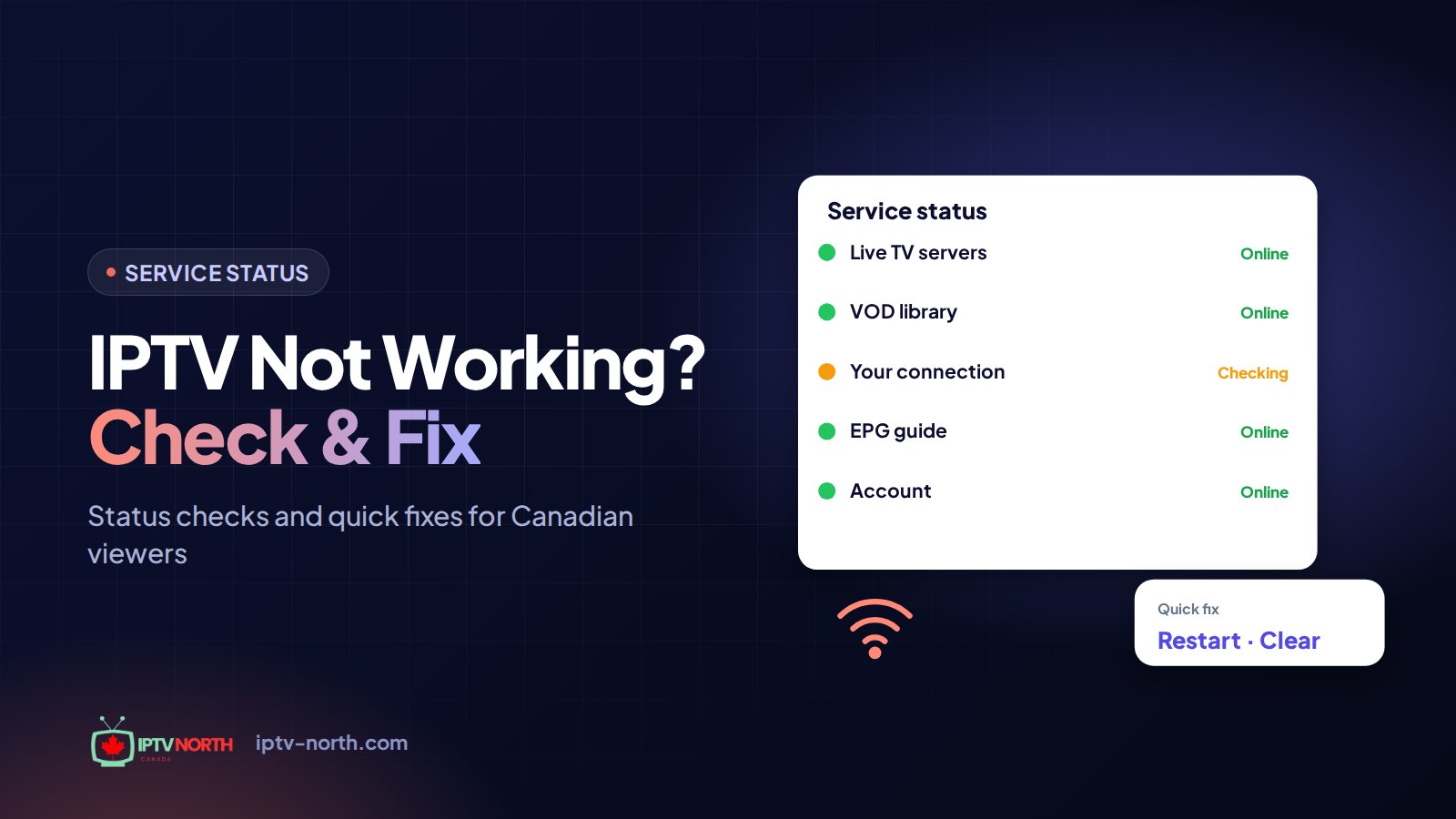
Step 1: Is IPTV Down, or Is It Just You? (The 60-Second Status Check)
Run these four checks in order. They take less time than rebooting your router, and they tell you where to focus.
| Check | How to do it | What the answer means |
|---|---|---|
| Second device | Open the same app on your phone or tablet on the same Wi-Fi | Works there? The issue is your TV device or its app |
| Mobile data | Turn off Wi-Fi on the phone and try again on LTE/5G | Works on mobile data only? Look at your home internet |
| Other channels | Try three channels from different categories | Only one fails? It's that channel's source, usually temporary |
| Ask us | Chat or email service@iptv-north.com | We confirm right away if there's maintenance or an outage |
If all your devices fail on every network and several channels are down, the problem is most likely on the service side. In that case, the best move is to contact support and wait a few minutes rather than resetting your equipment. Our Canadian team is available 24/7 by chat and at service@iptv-north.com.
If only one device or one network is affected, keep reading: the fix is almost certainly in your hands.
Step 2: Quick Resets That Solve Most Problems
Before tackling specific errors, do these three resets. They clear the majority of cases where IPTV stops working without warning.
- Restart the streaming device completely. Unplug the Fire TV Stick, Android TV box or Smart TV from the wall for 30 seconds. A remote "sleep" isn't a real restart.
- Restart your internet equipment. Unplug the modem and router, wait a minute, plug in the modem first, then the router once the lights are stable.
- Close and reopen the app. On Android devices, use Force Stop in the app settings rather than just pressing Home.
Test again. Still stuck? Find your symptom below.
IPTV Not Working: Fixes for Each Error You Might See
Black Screen, but Sound Plays (or Nothing at All)
A black picture usually means the video decoder can't handle the stream on that device.
- In your player settings, switch the video engine (for example from hardware to software decoding, or to the VLC engine)
- Try a lower-quality version of the channel if your list offers SD or HD variants
- Check that the HDMI cable is firmly seated and try another HDMI port on the TV
- Update the app; decoder fixes are common in updates
"Login Failed", "Authorization Error" or "Account Expired"
These messages come from the account side, not your internet.
- Re-type your username and password carefully; a stray space copied from an email is a classic cause
- Check your subscription end date. If it expired, renewing restores access (plans start at $19 for one month; see our pricing page)
- If you recently renewed or changed devices, ask support to confirm your credentials
- Remember that each plan covers one device at a time; a second screen logged in simultaneously can block the first
Channel List or EPG Won't Load
When the app opens but stays on "Loading playlist" or shows an empty guide:
- Delete the playlist in the app and add it again with the details from your welcome email
- Clear the app cache (Settings → Applications → your player → Clear Cache)
- Check the date and time on your device; a wrong clock can stop guide data from loading
- For guide-specific problems, our EPG guide explains how to refresh or reassign guide data
Channels Start, Then Freeze or Buffer
This is a delivery problem, not an account one. The usual culprits are Wi-Fi, a busy home network or evening congestion.
- Plug the device into the router with an Ethernet cable, or switch to the 5 GHz Wi-Fi band
- Pause big downloads, console updates and cloud backups
- Lower the quality from 4K to Full HD while you investigate
For a complete walkthrough, see our hands-on guide to fix IPTV buffering.
"Network Error", "Unable to Connect" or Endless Spinning
The app can't reach the server at all.
- Confirm other apps on the same device can go online (open YouTube, for example)
- Switch your DNS to Cloudflare (
1.1.1.1) or Google (8.8.8.8) in the device or router settings - If you use a VPN, turn it off and test again; if it works without the VPN, pick a different Canadian server or exclude the IPTV app with split tunnelling
- Some routers with strict parental or security filters block streaming; try temporarily disabling those features
App Crashes or Closes on Its Own
- Make sure the device has at least 1 GB of free storage
- Uninstall the app, restart the device, and reinstall a fresh copy
- Install pending firmware updates for the stick or TV
- If the device is several years old, it may simply struggle with modern apps; our installation guide lists supported devices and apps
Error Quick-Reference Table
| Symptom | Likely cause | First fix |
|---|---|---|
| Black screen | Decoder or HDMI | Change video engine |
| Login or authorization error | Credentials, expiry, device limit | Re-enter details, check end date |
| Empty playlist or guide | Stale cache or clock | Re-add playlist, clear cache |
| Freezing and buffering | Wi-Fi or congestion | Ethernet or 5 GHz band |
| Network error | DNS, VPN or firewall | Change DNS, disable VPN |
| App crashes | Storage or outdated app | Free space, reinstall |
Keep It From Happening Again
A few habits prevent most future outages at home:
- Renew before your plan ends; with Interac e-Transfer it takes a minute
- Reboot your streaming device weekly and clear the app cache monthly
- Keep apps and firmware up to date
- Save your login details somewhere safe so reinstalling is painless
- Before a big game, test your setup an hour early instead of at puck drop
Contacting IPTV North Support: What to Include
If nothing above solved it, reach out. The more detail you give, the faster we can help. Include:
- The email or username on your account
- Your device (Fire TV Stick, Android TV, Smart TV brand, Apple TV, MAG, BuzzTV, Formuler…) and the player app
- The exact error message, or a photo of the screen
- Which channels are affected and since when
- A recent speed test result from speedtest.net, your ISP and your province
Chat with us on the site or write to service@iptv-north.com. You can also use our contact page. Canadian support is available 24/7.
Frequently Asked Questions
How do I know if IPTV North is down right now?
Try the service on a second device and on mobile data. If everything fails everywhere, contact us by chat or email and we'll confirm whether there's maintenance or an outage. If it works on one device or network, the issue is local.
Why does only one channel not work?
When a single channel fails while others play, the issue is almost always at that channel's source. It typically comes back within 15 to 20 minutes. If it doesn't, let support know which channel is affected.
My IPTV stopped working after a device update. What should I do?
Restart the device, clear the app cache and, if needed, reinstall the app. Updates occasionally reset permissions or settings. Re-entering your playlist details usually brings everything back.
Can I use my subscription on a second TV?
Each plan covers one device at a time. If a second device is streaming, the first may be blocked. Close the app on the other screen, or contact us about options for more connections.
Does a VPN cause IPTV to stop working?
Sometimes. A distant or overloaded VPN server can slow or block streams. Turn the VPN off to test; if the service works, reconnect using a Canadian server close to you.
Is there a way to test before renewing?
New viewers can try the service with a 24-hour trial for $2.99, paid by Interac e-Transfer, to confirm everything works on their devices and connection.
Summary: IPTV Not Working in Canada, Solved in Three Moves
When your IPTV is not working in Canada, don't start by changing everything. First, run the 60-second status check to see whether the problem is on the service side or at home. Second, do the three resets. Third, match your screen to the error list and apply that specific fix.
Most issues are resolved within a few minutes this way. And if you're still stuck, IPTV North's Canadian support team is one message away, 24/7, ready to get you back to your 25,000+ live channels and 120,000+ movies and series.