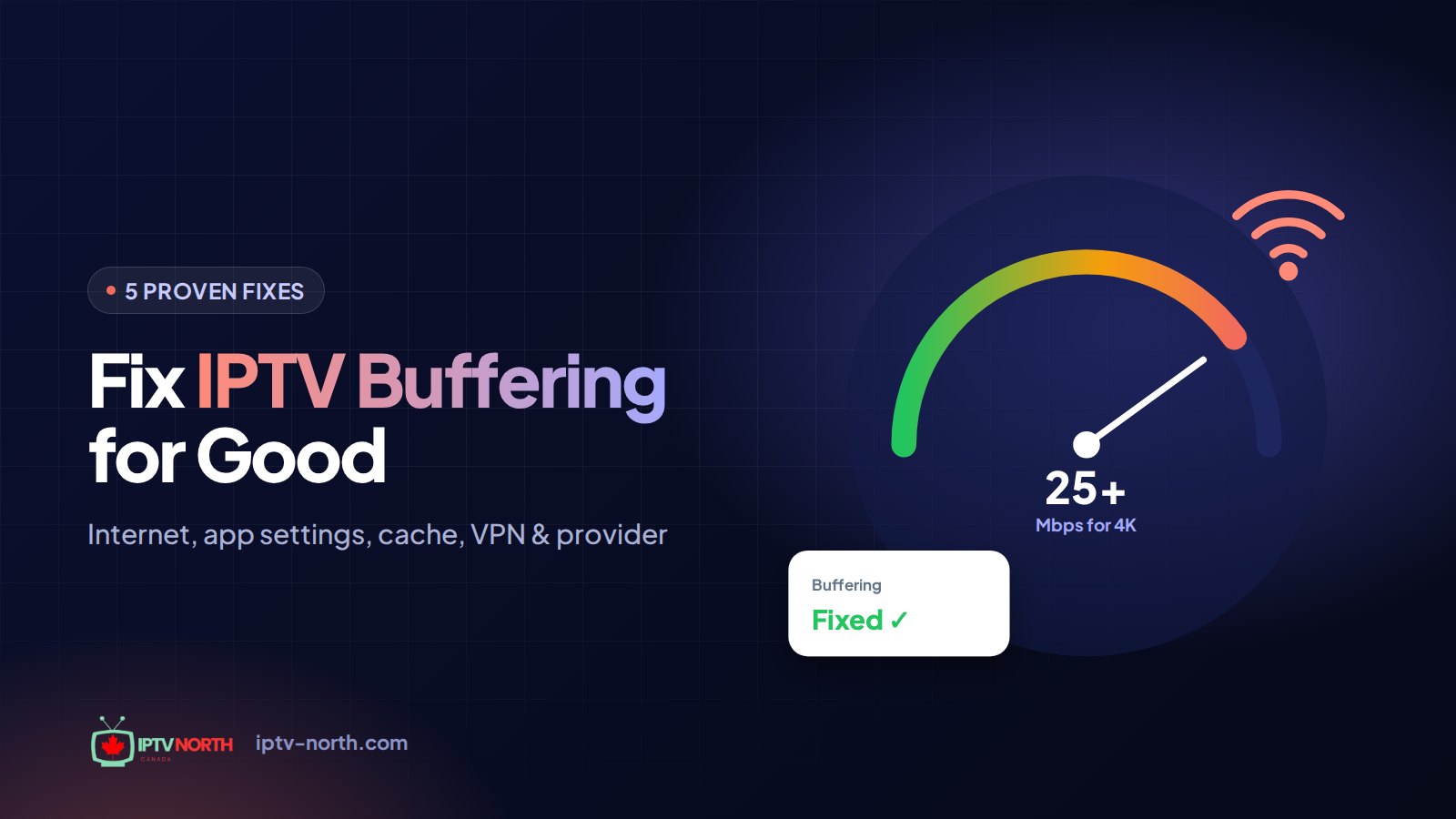
It's the third period, the Oilers are on a power play, and the picture freezes on a spinning wheel. If that scene sounds familiar, this page is for you. It's a hands-on checklist to fix IPTV buffering, written for people who want to roll up their sleeves and solve the problem tonight rather than read theory.
Every step below is something you can do yourself in a few minutes, with the remote or a phone in hand. We have ordered the fixes from the quickest and cheapest to the most involved, so you stop as soon as the stream runs clean. If you would rather understand why streams stall before touching anything, read our companion explainer on why IPTV buffers first, then come back here.
Before You Start: Two-Minute Triage
Grab a notepad (or your phone's notes app) and answer three quick questions. Your answers tell you which part of the checklist matters most.
- Is every channel stalling, or only one? A single problem channel is usually on the source side and often recovers on its own within 15–20 minutes. Everything stalling points to your home setup.
- Does it happen at all hours, or mainly between 7 and 11 p.m.? Evening-only trouble hints at network congestion or throttling; round-the-clock trouble hints at Wi-Fi, the device or the app.
- Does the same channel play smoothly on another device? If your phone on the same Wi-Fi is fine while the living-room stick stutters, focus on the stick.
Keep these answers handy. They will also speed things up enormously if you ever need to contact our Canadian support team.
Fix IPTV Buffering at the Network Level
Most stalls are born somewhere between your modem and your TV. Start here.
Power-Cycle the Modem and Router Properly
A quick "off and on" is not enough. Do it in this order:
- Unplug the modem and the router (or the all-in-one gateway from Bell, Rogers, Telus or Vidéotron)
- Wait a full minute so the equipment fully drains
- Plug the modem back in first and wait until its lights settle
- Then plug in the router, give it another minute, and restart your streaming device last
This flushes stale connections and often gives you a fresh route to your ISP.
Measure What You Really Get
Run a test at speedtest.net from the streaming device itself when possible (Fire TV and Android TV both have browser or app options). A test on your laptop in the home office does not reflect what reaches the basement TV. Compare your result with this table:
| What you watch | Comfortable speed per stream | Notes |
|---|---|---|
| SD channels | 10 Mbps | Fine for news and talk shows |
| HD / Full HD (720p–1080p) | 25 Mbps | The sweet spot for most households |
| 4K channels and movies | 50 Mbps or more | Needs a stable wired or strong 5 GHz link |
| Several screens at once | Add each stream together | Plus a margin for phones and laptops |
If the number on the TV is far below what you pay for, the next two fixes are where you will win back the most.
Run a Cable (or Get as Close as You Can)
Swapping Wi-Fi for an Ethernet cable is the single most effective way to fix IPTV buffering, and it costs about $15 at any electronics store. A wired link eliminates interference from your neighbours' networks, which matters a lot in Toronto or Montréal condo towers where dozens of routers overlap.
No port on your stick? Fire TV Sticks accept an inexpensive Ethernet adapter that plugs into the power cable. When a cable across the living room is out of the question:
- Connect to the 5 GHz network (often labelled "5G") instead of 2.4 GHz
- Move the router off the floor and out of the cabinet; open shelves carry signal better
- Consider a mesh system or a powerline adapter for split-level homes and basements
Free Up Bandwidth During the Game
Your stream shares the pipe with everything else in the house. Before puck drop:
- Pause game console and computer updates
- Stop cloud photo and backup uploads (iCloud, Google Photos, OneDrive)
- Ask the teenagers to hold the 4K YouTube binge until intermission
- If your router has a QoS or "prioritize device" setting, put the TV at the top
Tune the Player App
When the network checks out, the next suspect is the app. The good news: player settings take seconds to change.
Switch the Player Engine
Most players let you choose how video is decoded. Look under Settings → Player (the exact wording varies) and test them one at a time:
- ExoPlayer / hardware decoding — usually the best choice on Fire TV Stick and Android TV
- VLC engine — handles unusual stream formats well when the default player struggles
- Software decoding — a fallback for older boxes where hardware decoding causes glitches or crashes
Watch the same busy channel for five minutes after each change so you are comparing apples to apples.
Set a Sensible Buffer
A larger buffer lets the app store a few extra seconds of video, which smooths over short network hiccups. Aim for a middle-of-the-road value:
- Around 5 to 10 seconds suits most Canadian connections
- On shaky rural or LTE home internet, try 10 to 15 seconds
- Going much higher mostly lengthens the wait every time you change channels
Other Quick Toggles
- Set quality to Auto or step down from 4K to 1080p while testing
- Turn off automatic EPG refresh during playback if your app allows it; our EPG guide explains when to schedule guide updates instead
- Update the app to the latest version from its store or official download page
- Try an alternate stream of the same channel if your app lists more than one
Setting up TiviMate for the first time? Our TiviMate on Android TV walkthrough shows where each of these options lives.
Clean Up the Device
Streaming sticks are small computers with modest memory. After months of use they clog up.
Clear the Cache on Fire TV and Android TV
- Open Settings → Applications → Manage Installed Applications
- Select your IPTV player
- Choose Force Stop, then Clear Cache
- Only if problems persist, choose Clear Data — this signs you out, so keep your login details ready
- Restart the device from Settings → My Fire TV → Restart (or the equivalent)
Clear the Cache on a Smart TV
On Samsung, LG and similar sets, the storage menu sits under a "Device Care" or "Apps" section. Clear the player's cache, then hold the power button on the remote until the TV fully reboots rather than simply going to standby.
Housekeeping Habits That Prevent Stalls
- Keep at least 1 GB of free storage; uninstall apps you never open
- Close background apps before launching your player
- Install system updates as they arrive
- Reboot the device once a week; before a big game, reboot it an hour early
| Maintenance task | How often | Time needed |
|---|---|---|
| Restart streaming device | Weekly | 1 minute |
| Clear player cache | Monthly | 2 minutes |
| Power-cycle modem and router | Monthly or when stalls appear | 3 minutes |
| Update apps and firmware | When prompted | 5 minutes |
Advanced Fixes: DNS and a VPN Test
Still stuttering? Two more tools are worth a try.
Try a Public DNS
Your ISP's default DNS servers can be slow to answer, which shows up as channels taking ages to start. Changing DNS on the router or the device is free and reversible:
- Cloudflare:
1.1.1.1and1.0.0.1 - Google:
8.8.8.8and8.8.4.4
DNS will not raise your bandwidth, but it often makes channel switching feel snappier.
Run a One-Evening VPN Test
If your trouble appears mostly in the evening even though daytime speed tests look fine, some ISPs may be managing video traffic during busy hours. The quickest way to find out is an A/B test:
- Watch a busy channel for 15 minutes at 8 p.m. without a VPN and note the stalls
- Connect a reputable paid VPN, pick a server in Canada close to you, and use the WireGuard protocol if offered
- Watch the same channel for another 15 minutes
If playback is clearly smoother with the VPN, you have your answer. If it is the same or worse, uninstall it; a VPN is not a cure-all. Our guide on VPNs for IPTV in Canada walks through picking a server and what speed cost to expect.
When the Problem Isn't on Your End
Sometimes you do everything right and the stream still stalls. Signs that the service side is involved:
- Every channel stalls at the same moment, on every device, even over Ethernet
- The problem persists with and without a VPN
- Other people using the same service report the same thing at the same time
With IPTV North, you can check quickly: email service@iptv-north.com or open the chat and describe what you are seeing. Our Canadian support team answers 24/7 and can tell you whether there is maintenance or a channel-specific issue. If you are still shopping around, the 24-hour trial ($2.99, paid by Interac e-Transfer) lets you run this whole checklist against our 25,000+ live channels and 120,000+ movies and series in 4K and FHD before committing to a plan.
Upgrades Worth Considering
If you have ticked every box and your hardware is getting old, a modest upgrade can finish the job:
- Newer streaming stick or box — a current Fire TV Stick 4K model, an Android TV box, an Apple TV, or an IPTV-focused box such as Formuler or BuzzTV decodes HD and 4K far more comfortably than a device from five or six years ago
- Wi-Fi 6 router — a real improvement in busy apartment buildings and homes with many connected devices
- Mesh network — solves dead zones in larger houses, especially for basement TV rooms
- Faster internet tier — only once you have ruled out Wi-Fi and device issues; more speed will not fix a bad signal
Not sure which device suits your setup? See our full installation guide for step-by-step instructions on each supported device.
Frequently Asked Questions
What is the fastest way to fix IPTV buffering right now?
Restart the modem, router and streaming device in that order, then switch the TV to Ethernet or the 5 GHz band. Those two moves resolve the majority of cases in under ten minutes. If stalls continue, change the player engine and clear the app cache next.
Why does buffering start only when the whole family is home?
Every phone, laptop and console shares the same connection. When several people stream or download at once, your TV gets a smaller slice. Pause updates and backups during the game, and use your router's QoS setting to give the TV priority.
Can lowering the picture quality help?
Yes, as a diagnostic step. If a channel runs smoothly at 1080p but stalls in 4K, your connection or Wi-Fi cannot sustain the higher bitrate. Improve the link first, then move back up to 4K.
How often should I clear my player's cache?
Once a month is a good habit, and any time performance suddenly drops. Clearing the cache does not remove your login or playlists; only "Clear Data" does that.
Do I need a VPN to stop buffering?
Not usually. A VPN helps only when your ISP is managing streaming traffic, which you can confirm with the one-evening test above. On an unrestricted connection, a VPN can add a small delay instead of removing one.
What should I send support if nothing works?
Include your device model, the player app, whether you are on Wi-Fi or Ethernet, a recent speed test result from the TV, your ISP and province, and the channels and times affected. With those details, the team can pinpoint the cause much faster.
One-Page Checklist to Fix IPTV Buffering
Print this, stick it on the fridge, and work down the list the next time the wheel starts spinning:
- Triage: one channel or all? Evenings only? Other devices fine?
- Power-cycle modem, router and streaming device, in that order
- Test speed from the TV and compare with the table above
- Move to Ethernet, or at least 5 GHz Wi-Fi
- Pause heavy downloads and enable QoS
- Try another player engine and set a 5–10 second buffer
- Clear the cache, free storage, restart the device
- Switch DNS, then run the one-evening VPN test
- Contact support with your notes if the problem persists
Nine times out of ten, you will fix IPTV buffering long before you reach the bottom of the list. And if you want to see how smooth streaming can be on a service built for Canadian viewers, explore our IPTV plans starting at $19 a month, with no contract and payment by Interac e-Transfer.